Amplify Informatics Conference Social Media Toolkit
Planning to attend, speak at, or exhibit at the 2026 Amplify Informatics Conference in Denver? Use these ready-to-share social media templates to spread the word about your participation and connect with fellow informaticians before the event.
I Am an Attendee
Excited to join fellow informaticians at the #Amplify2026 Amplify Informatics Conference in Denver, May 18–21! I’m excited to connect with informaticians from the full spectrum of our profession, from clinical informaticians to translational researchers.
Just registered for AMIA’s Amplify Informatics Conference! Can’t wait for 4 days of informatics insights in Denver this May. Who else is attending? #Amplify2026
Denver bound for #Amplify2026! Looking forward to learning from the best in health informatics at the Amplify Informatics Conference, May 18–21. Time to advance healthcare through data and innovation!
I’ll be at the AMIA Amplify Informatics Conference in Denver, May 18–21! I’m ready to dive into healthcare AI, clinical informatics, and the latest translational bioinformatics research. Let’s connect! #Amplify2026
Include an Image
How to personalize your image.
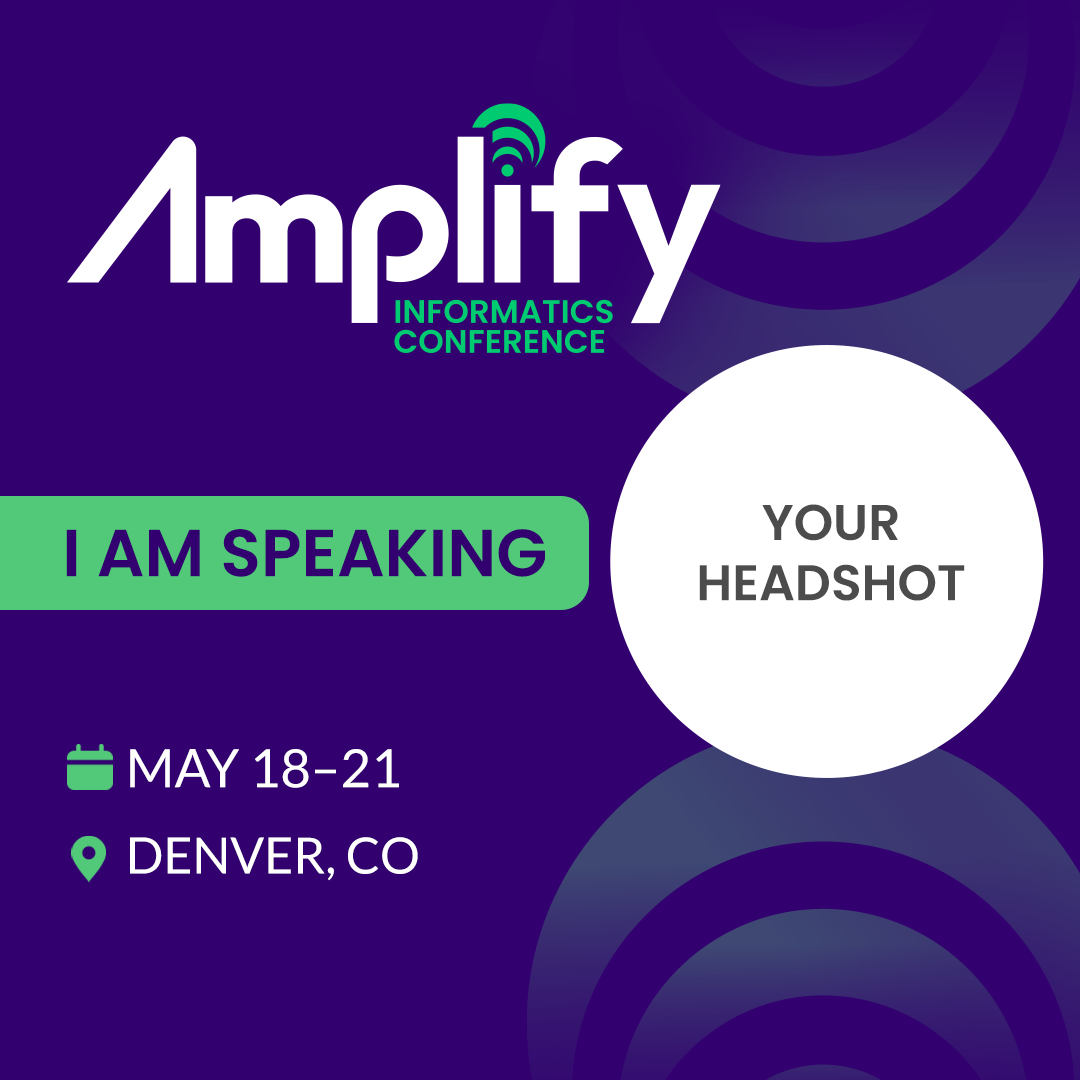
I Am a Speaker
I am honored to present a session at the #Amplify2026 Amplify Informatics Conference in Denver! Join me May 18–21 as we explore [topic]. Can’t wait to share insights with the informatics community!
Thrilled to be speaking at the AMIA Amplify Informatics Conference this May! Looking forward to discussing [topic] with fellow innovators in Denver. See you there! #Amplify2026
Save the date! I’ll be presenting at the AMIA Amplify Informatics Conference, May 18–21 in Denver. Excited to share our latest research on [topic]. Who’s joining? #Amplify2026
🎤 Catch my presentation [presentation title] at the #Amplify2026 Amplify Informatics Conference in Denver. Let’s advance health informatics together, May 18–21! Details: [session info]
Include an Image
How to personalize your image.
I Am an Exhibitor
Visit us at booth [#] during #Amplify2026! We’ll be in Denver May 18–21 showcasing [product/solution]. I’d love to connect in Denver!
[Company] is heading to Denver for the AMIA Amplify Informatics Conference! We’re excited to connect with clinical informaticians and researchers alike. See you at booth [#]! #Amplify2026
I’m so excited to exhibit at the AMIA Amplify Informatics Conference! Join us in Denver, May 18–21, to explore our latest [solutions/innovations] for healthcare. Let’s connect at booth [#]! #Amplify2026
We’re gearing up for #Amplify2026! Visit [Company] at the Amplify Informatics Conference in Denver to see how we’re partnering with informaticians. Stop by booth [#] or schedule a meeting: [link]
Include an Image
How to personalize your image.
How to Personalize Your Social Media Graphics
Download the template that fits your role (Attending, Speaking, Presenting, or Exhibiting) and follow the steps below to add your headshot or company logo.
You will need:
- Your downloaded template image (PNG)
- A headshot photo or company logo file
- Access to Canva (free) or PowerPoint
Option 1: Using Canva
- Go to canva.com and sign in or create a free account.
- Click Create a design and choose Custom size. Enter the dimensions that match your template:
- Square posts: 1080 x 1080 px
- Story/vertical posts: 1080 x 1920 px
- Click Uploads in the left sidebar and upload both your template image and your headshot or logo.
- Drag the template image onto the canvas. Resize it to fill the entire canvas.
- Now drag your headshot or logo onto the canvas. It will appear on top of the template.
- Resize and position your photo so it covers the white circle that reads "Your Headshot" or "Your Logo."
- To crop your image into a circle: Select your photo, then click Edit image (or right-click and choose Edit image). Look for the Frames option and select a circle frame. Alternatively, you can select the photo, click Crop in the top toolbar, and adjust manually.
- With your photo still selected, right-click and choose Send backward (or click Position > Backward) so the template border sits on top of your image. Repeat if needed until the circular frame of the template overlaps your photo cleanly.
- Check that your image fills the circle area without gaps, then click Share > Download and save as a PNG.
Option 2: Using PowerPoint
- Open PowerPoint and create a new blank presentation.
- Right-click the blank slide and select Layout > Blank to remove any text boxes.
- Go to Insert > Pictures and choose your downloaded template image. Resize it to fill the slide.
- Go to Insert > Pictures again and choose your headshot or logo file.
- With your photo selected, go to the Picture Format tab in the toolbar. Click Crop > Crop to Shape and select the oval (circle) shape.
- Hold the Shift key while resizing your cropped photo to keep it a perfect circle.
- Drag your circular photo over the white "Your Headshot" or "Your Logo" area on the template. Resize until it fits neatly within the circle.
- If your photo appears behind the template, right-click the photo and select Bring Forward until it sits on top of the white circle.
- When everything looks right, go to File > Save As and choose PNG as the file format. Select Just This Slide when prompted.
Tips for Best Results
- Use a high-resolution headshot so your image stays sharp when resized. Photos that are at least 500 x 500 pixels work best.
- Keep it simple. Center your face in the circular frame with a little space above your head.
- Exhibitors: Use a version of your logo with a transparent background (PNG format) for the cleanest look. Place it centered within the circle and scale it so it has some breathing room around the edges.
- Check before posting. Preview your final image at full size to make sure nothing looks cut off or blurry.